
iPhone & iPad
The quickest way is to scan the QR code on your dashboard. You will need your dashboard open on a computer.
Get the official WireGuard app
The pictures below are diagrams rather than photographs of a real screen, so your version of the app may look a little different. The names in quotes are what matters — those are exact.
-
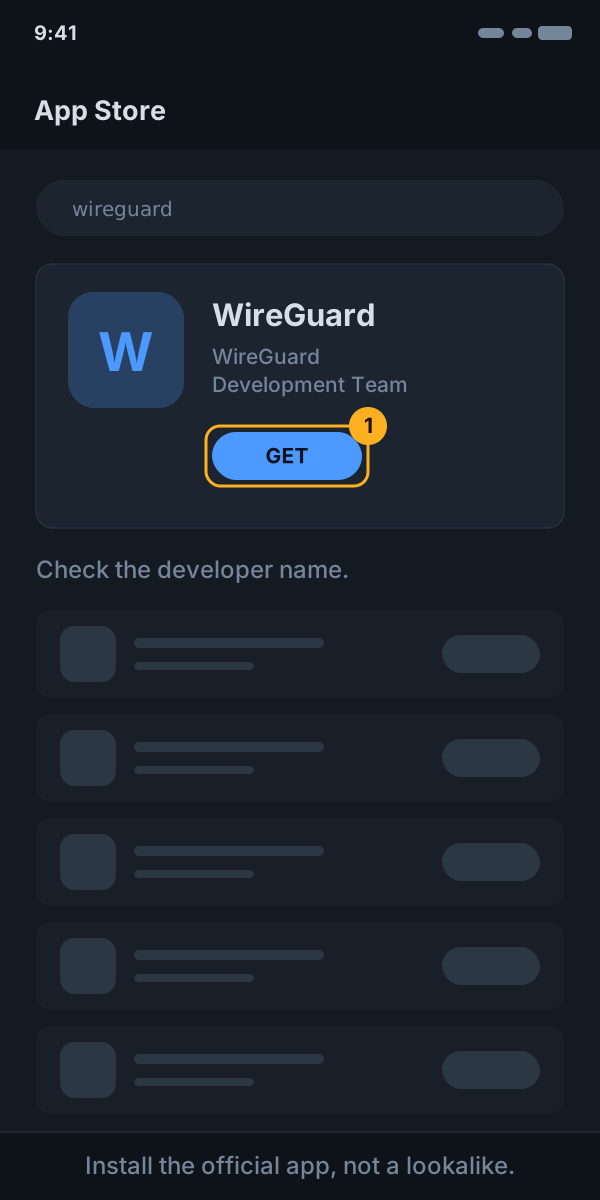
1 Install WireGuard
Open the App Store, search for WireGuard and install it. The developer should be listed as “WireGuard Development Team”.
-
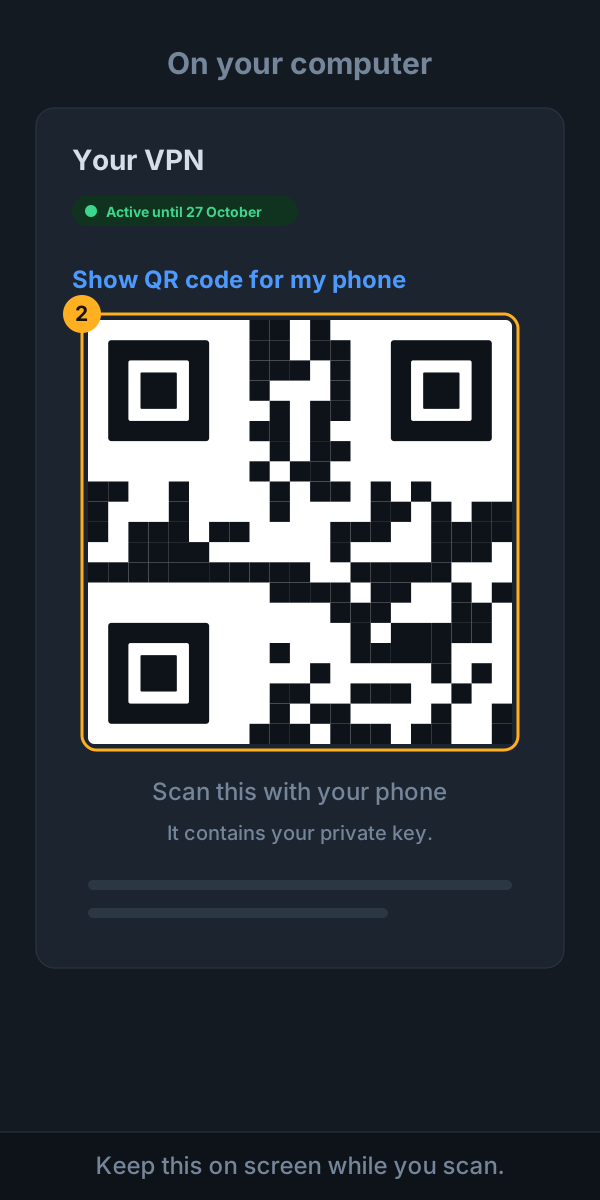
2 Open your dashboard on a computer
Open “My VPN” on a computer (with your recovery code, if it is not the one you bought on) and choose “Show QR code for my phone”.
-
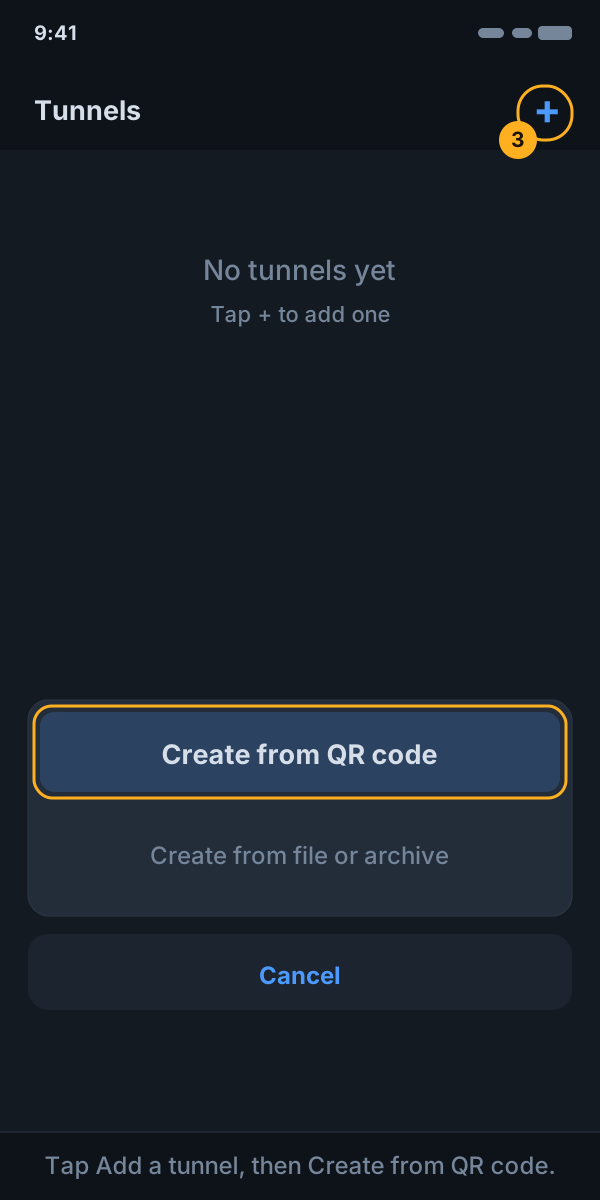
3 Scan the code
In the WireGuard app tap Add a tunnel, then “Create from QR code”. Point the camera at your screen and give the tunnel a name.
-
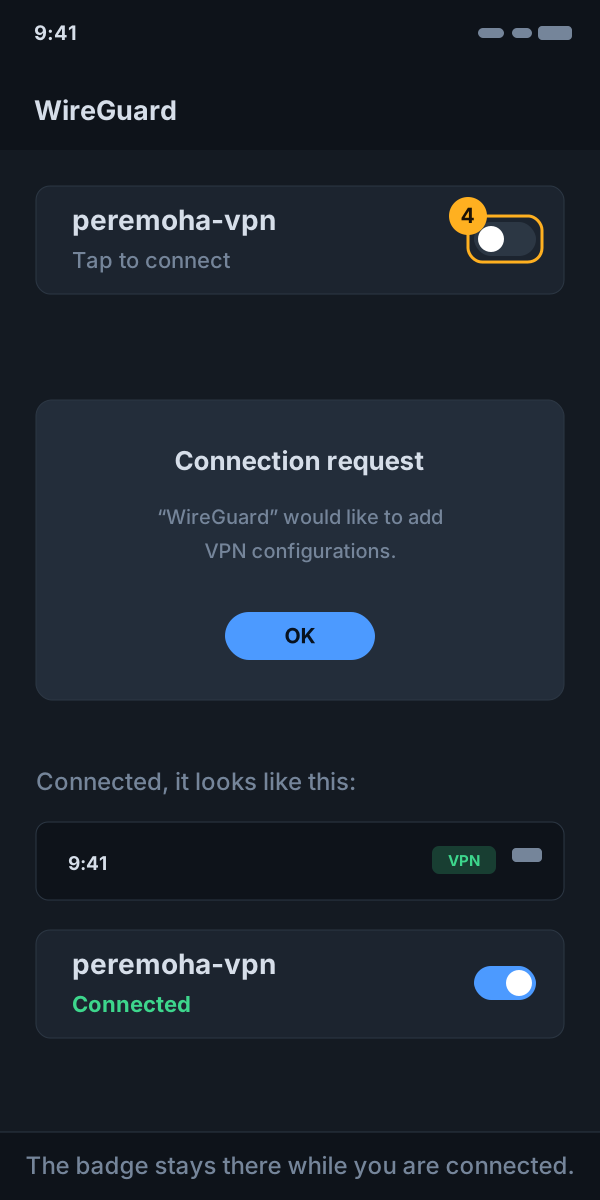
4 Connect
Tap the switch next to your tunnel. iOS asks permission to add a VPN configuration — approve it with Face ID, Touch ID or your passcode. A small VPN badge appears at the top of the screen while you are connected.
How do I know it is working?
Open a browser and search for “what is my IP”. The address shown should be different from the one you saw before connecting. If it has not changed, the tunnel is not active.
Disconnecting
Open WireGuard and tap the switch again to turn it off.